
SwipeClock Instructions for Managers
How to Correct Time Clock Punches
Login:
Link to login to the website: https://www.swipeclock.com/pg/login.aspx
Login ID: LOGIN ID
Password: PASSWORD
This will bring you to your Home Screen, it’s suggested that you change your password (Settings Menu, Login Maintenance) to something that will be easier for you to remember.
Punch Corrections
View/Edit Punches at least once weekly to ensure the accuracy of the time clock detail.
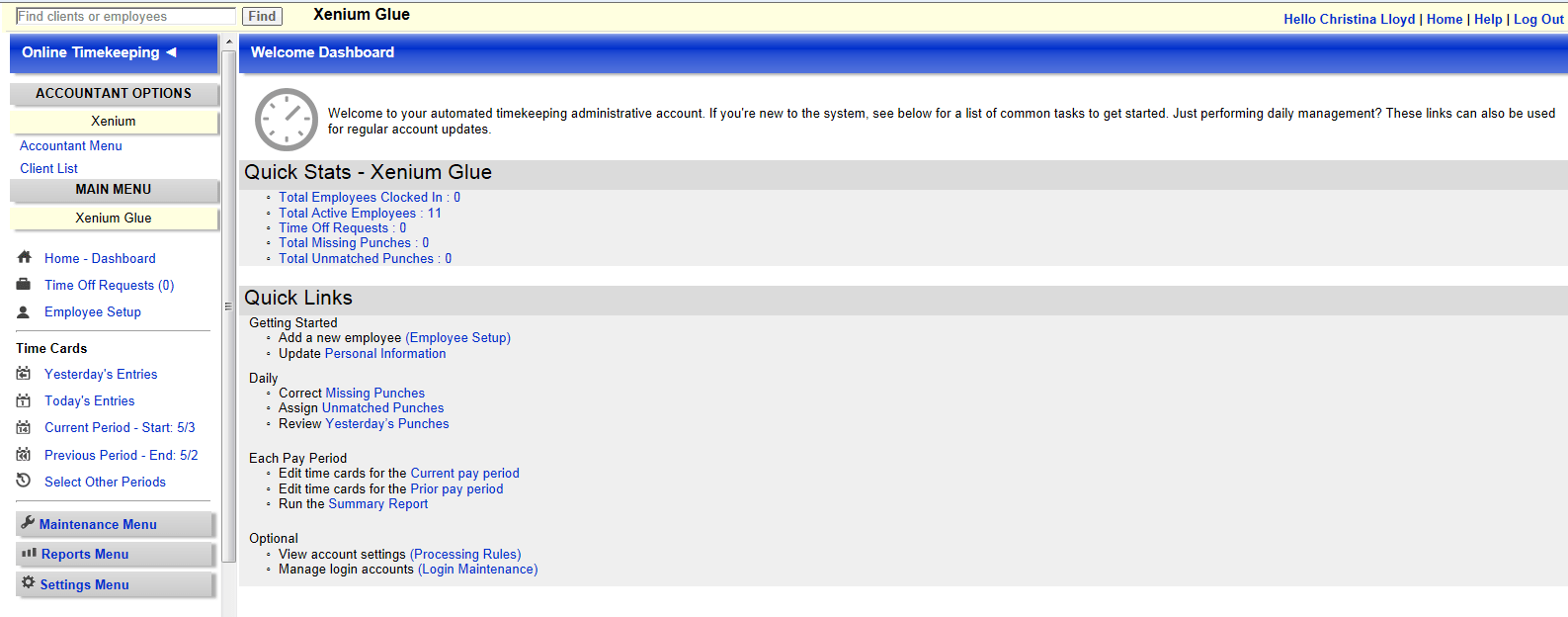
To View/Edit Time Punches either select (from your Home Screen) the Daily or Pay Period Quick link, or under Main Menu select Yesterday Entries, Todays Entries, review current pay period, or view previous pay periods. Note: Once the time has been imported changes made to the Previous Pay Period will not be reflected, please be mindful of what pay period that punches are being edited in.

All Employees for the Company will be listed. You will need to edit the punches as necessary to ensure the employees are paid accurately. Adjust time in, time out, lunches and PTO as applicable. Click on the link for the day to be edited, and then adjust accordingly. Make sure to save as each day has been modified.
- Missing Punches will be under the column marked “M”
- Edited Punches will be under the column marked “E”
- Adjust punches in standard time, also note if a lunch period needs to be adjusted.
Reports
View the various reports to determine which will suit your needs. The most commonly referenced report is the Summary Report. This report is used to list each employee’s hours within your department for the pay period in the report range. If there are punch errors then there employees name will be highlighted red.
The punches are not removed, so they will be accessible for as long as you’re with the service and you will be able to run reports for periods of time as necessary.
Adding an Employee to the Time Clock
From your Home Screen-Dash Board select Employee Setup and next to the Header Employee Name there is a link to add a new employee.
- Information needed to set up a new employee:
- First Name
- Last Name
- Employee Code (Contact your Payroll Specialists)
- Department
- Supervisor Name (name of employee – make sure to use full name)
- Location (Supervisor Name – make sure to use full name)
If Secondary supervisor, contact your Payroll Specialist
How to Approve Hours
Login:
Link to login to the website: https://www.swipeclock.com/pg/Login.aspx
Login ID: USER ID
Password: PASSWORD
This will bring you to your Home Screen; it’s recommended that you change your password (Settings Menu > Update Personal Info) to something that will be easier for you to remember.
To View/Edit Time Punches either select (from your Dashboard) the Quick links, or under Main Menu select Time Cards> Previous Period. You will need to edit the punches as necessary to ensure the employees are paid accurately. Adjust time in, time out, lunches and enter Holiday, PTO, and No Pay as needed. Click on the link for the day to be edited, and then adjust accordingly. Make sure to save as each day has been modified. If applicable, make sure to adjust time for lunch periods taken.
Note: Once the time has been reviewed for the pay period for each day click on the drop down for TIME CARD OPTIONS and then Approve Selected or Approve All Entries option on the top left of the timesheet.

Once you have done this the screen will then show Green that all entries have been approved.

How to Approve PTO – If Applicable
Login:
Link to login to the website: https://www.swipeclock.com/pg/Login.aspx
Login ID: USER ID
Password: PASSWORD
This will bring you to your Home Screen; it’s recommended that you change your password (Settings Menu>Update Personal Info) to something that will be easier for you to remember.
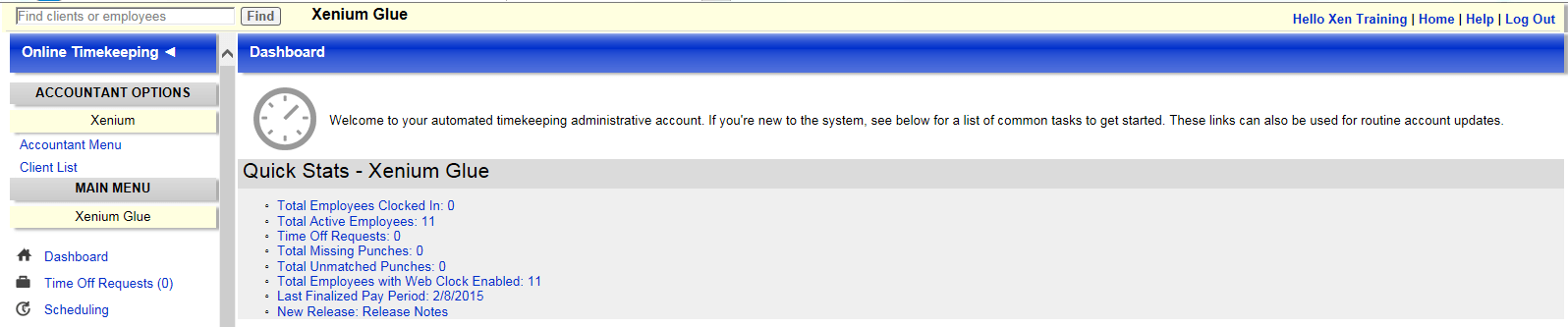
To view PTO requests click on the Time Off Requests link on the left side of your dashboard.
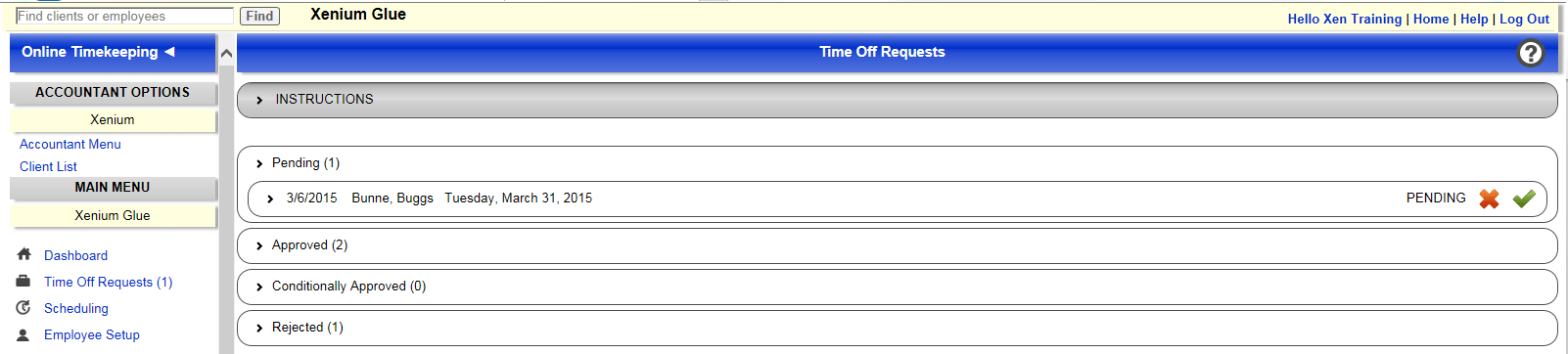
Then click on the arrow next to the Pending drop down.
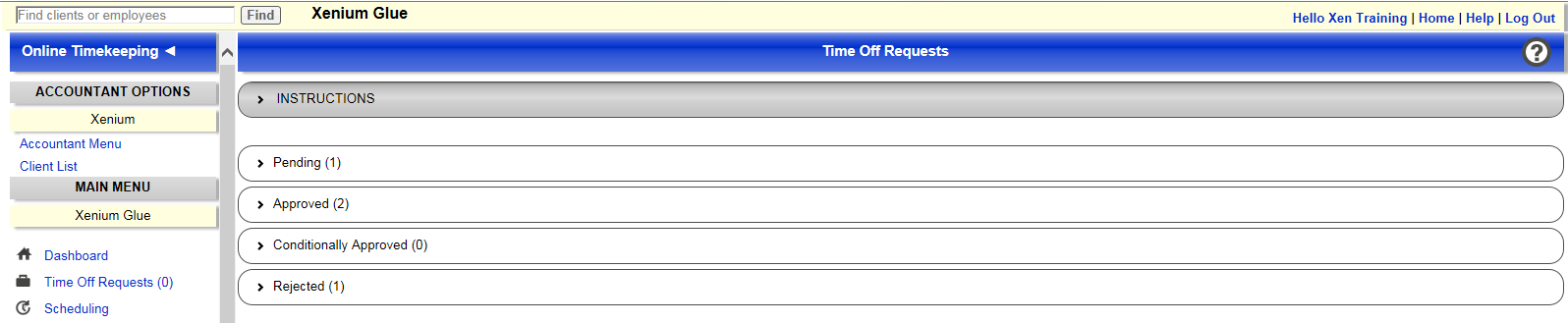
You may click the green check mark to approve the time off request and it will be added to the employee’s timecard. To reject a request click on the red X and you will be prompted to put in a comment as to why it is being rejected.
How to Enter Employees – If Applicable
- First Name
- Last Name
- Start Date
- Change Web Clock Enabled to Yes using the drop down Menu
- Create a login and password
- Keep the login to 5 digits (for easy use) ONLY ENTER IN FIRST BOX
- Password is temporary until the employee changes it
- Click SAVE and EXIT at the bottom of the screen
